What Is a Vector File? Formats, Uses and Benefits
 Sachin Gupta16 Nov 2026
Learn what a vector file is, how it differs from raster images, and which formats like SVG, AI, EPS, PDF and CDR are best for logos, websites and printing.
Summarize this article with AIHave you ever tried to enlarge a small logo and noticed that it became blurry? Or has a printer asked you to send your logo in an AI, SVG or EPS format?
The problem may be that your image is saved as a raster file instead of a vector file.
A vector file is an image made using lines, shapes and curves rather than a fixed grid of pixels. This allows you to resize it without losing its sharpness. That is why designers often use vector graphics for logos, icons, illustrations, banners and printed materials.
But what exactly is a vector file? How is it different from a JPG or PNG? And which vector format should you use?
Let's understand everything in simple language, with examples.
What Is a Vector File?
A vector file is a type of digital image created using points, lines, curves and geometric shapes. These elements are defined using mathematical instructions rather than individual pixels.
Think of it this way: imagine drawing a circle.
In a regular image, the circle is made from many tiny coloured squares called pixels. In a vector image, the computer stores instructions about the circle's shape, size, position and colour.
This is why a vector image can be made bigger or smaller without becoming blurry.
For example, imagine you have a company logo. You want to use the same logo on a small visiting card and a large shop banner. If the logo is saved as a vector file, you can resize it for both uses while keeping its edges sharp.
Adobe explains that vector files use mathematical formulas to create images, which makes them suitable for designs that need to be resized frequently.
How Does a Vector File Work?
You don't need to understand complicated mathematics to understand how vector graphics work.
A vector image is made from a few basic elements:
- Points: These mark the positions of shapes.
- Lines: These connect different points.
- Curves: These create smooth, rounded shapes.
- Paths: These are the lines and curves that form an object.
- Fills and strokes: These add colour inside a shape or around its edges.
For example, a simple house icon can be created using a rectangle, a triangle, a few lines and some colours.
The computer remembers how these shapes are made. When you resize the image, it redraws the shapes at the new size instead of stretching existing pixels.
That is why vector graphics remain sharp when enlarged.
Vector vs Raster: What Is the Difference?
Vector and raster are two common ways of creating digital images.
A raster image is made of tiny coloured squares called pixels. A vector image is made using shapes, lines and curves.
Think of a photograph taken with your phone. It is usually a raster image. Now think of a simple company logo made from text and geometric shapes. It is often created as a vector graphic.
Here is a simple comparison:
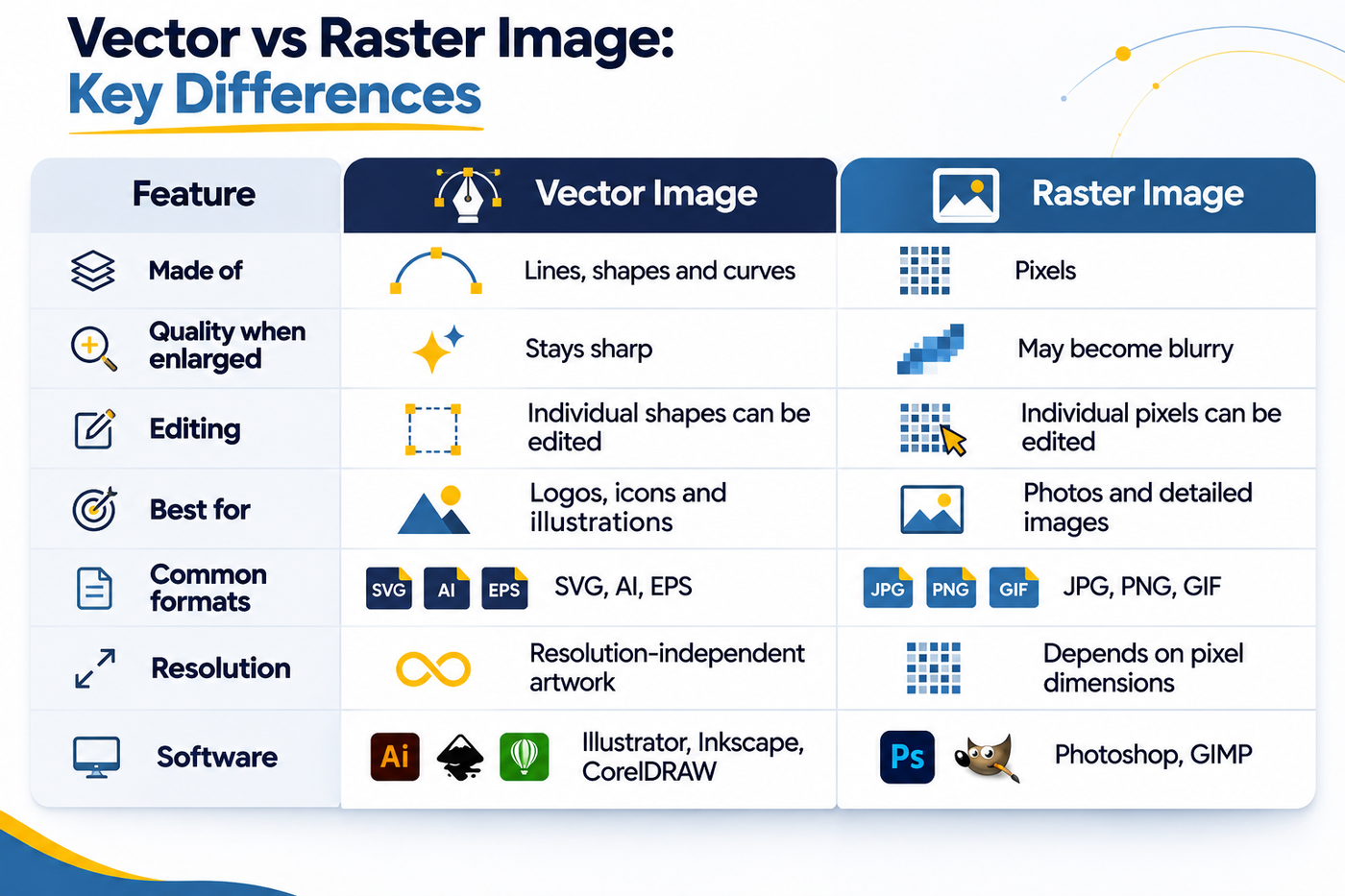
Which one should you use?
Choose vector graphics for logos, icons, illustrations and designs that need to work at different sizes.
Choose raster graphics for photographs, detailed textures and realistic images.
Neither format is better for every situation. The right choice depends on what you are creating.
How to Identify Whether a File Is Vector or Raster
Sometimes, you may receive an image without knowing whether it is a vector or raster file. You can use a few simple checks to identify the difference.
1. Check the file extension
Look at the file name and its extension. Formats such as SVG, AI, EPS and CDR are commonly associated with vector artwork. JPG, JPEG, PNG and GIF are raster formats.
However, remember that a PDF or EPS file can contain raster images too. The extension alone does not always tell you what is inside the file.
2. Zoom in on the image
Open the image and zoom in closely.
- If the edges remain smooth and sharp, the artwork may be vector-based.
- If you notice visible pixels or jagged edges, it is likely raster-based.
This is a useful quick check, although it is not a complete way to verify the file structure.
3. Open it in vector editing software
Try opening the file in a program such as Adobe Illustrator or Inkscape.
If you can select individual paths, shapes and anchor points, the artwork contains editable vector elements. If the entire image behaves like one flat picture, it may be a raster image placed inside the document.
4. Check the document structure
Some applications allow you to inspect objects and layers inside a file. If the artwork contains editable paths and shapes, it is likely vector-based.
These checks can help you understand what kind of image you have before using it for a website, branding project or print design.
What Are the Most Common Vector File Formats?
Not every vector file has the same extension. Different formats are designed for different purposes.
Here are five common vector file formats you should know.
1. SVG (.svg)
SVG stands for Scalable Vector Graphics. It is one of the most commonly used vector formats for websites and digital designs.
SVG files can be resized without losing image quality. They are also supported by modern web browsers.
Best uses:
- Website logos
- Icons and buttons
- Simple illustrations
- Charts and diagrams
- Web animations
If you need a logo or icon for a website, SVG is often a good choice.
2. AI (.ai)
AI is the native file format of Adobe Illustrator.
Designers commonly use AI files to create and edit professional vector artwork. They can preserve editable design elements, layers and other Illustrator-specific information.
Best uses:
- Professional logo design
- Brand identity projects
- Marketing illustrations
- Packaging designs
- Print artwork
If a designer shares an AI file, it usually means the original artwork was created in Adobe Illustrator.
3. EPS (.eps)
EPS stands for Encapsulated PostScript. It is an older format used for sharing vector artwork between design applications and print workflows.
It is still encountered in logo files, printing and older production systems. However, it does not support some modern features as well as newer formats.
Best uses:
- Older printing workflows
- Logo sharing
- Signage
- Vector artwork exchange
Always check with your printer before choosing EPS, as format support can vary.
4. PDF (.pdf)
PDF stands for Portable Document Format. It is commonly used to share documents while keeping their layout consistent across devices.
But here is something important: not every PDF is a vector file.
A PDF can contain vector shapes, text, photographs or a mixture of all three. A scanned PDF, for example, may contain only a raster image.
Best uses:
- Print-ready designs
- Brochures and catalogues
- Posters
- Sharing design documents
- Documents with vector illustrations
5. CDR (.cdr)
CDR is the native file format associated with CorelDRAW.
It is commonly used for vector illustrations, logos, signage and print designs.
Best uses:
- Logo artwork
- Printing and signage
- Promotional designs
- Vector illustrations
- Print production
CDR files are most convenient to edit in CorelDRAW or compatible software.
Vector File Formats at a Glance
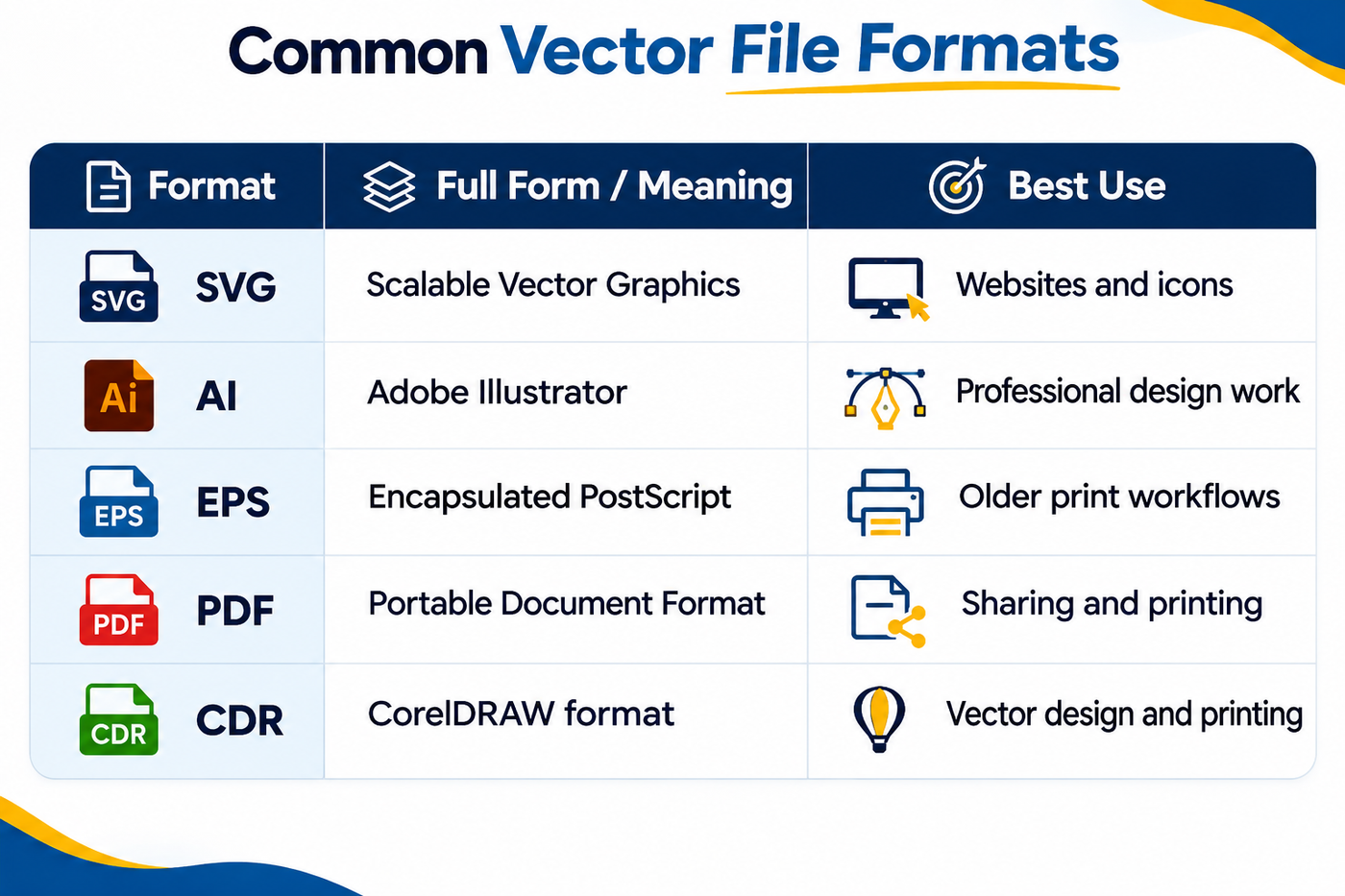
Remember that a file extension alone does not guarantee that every element inside a document is vector-based. A PDF or EPS file can also contain raster images.
What Is the Difference Between SVG, PNG and JPG?
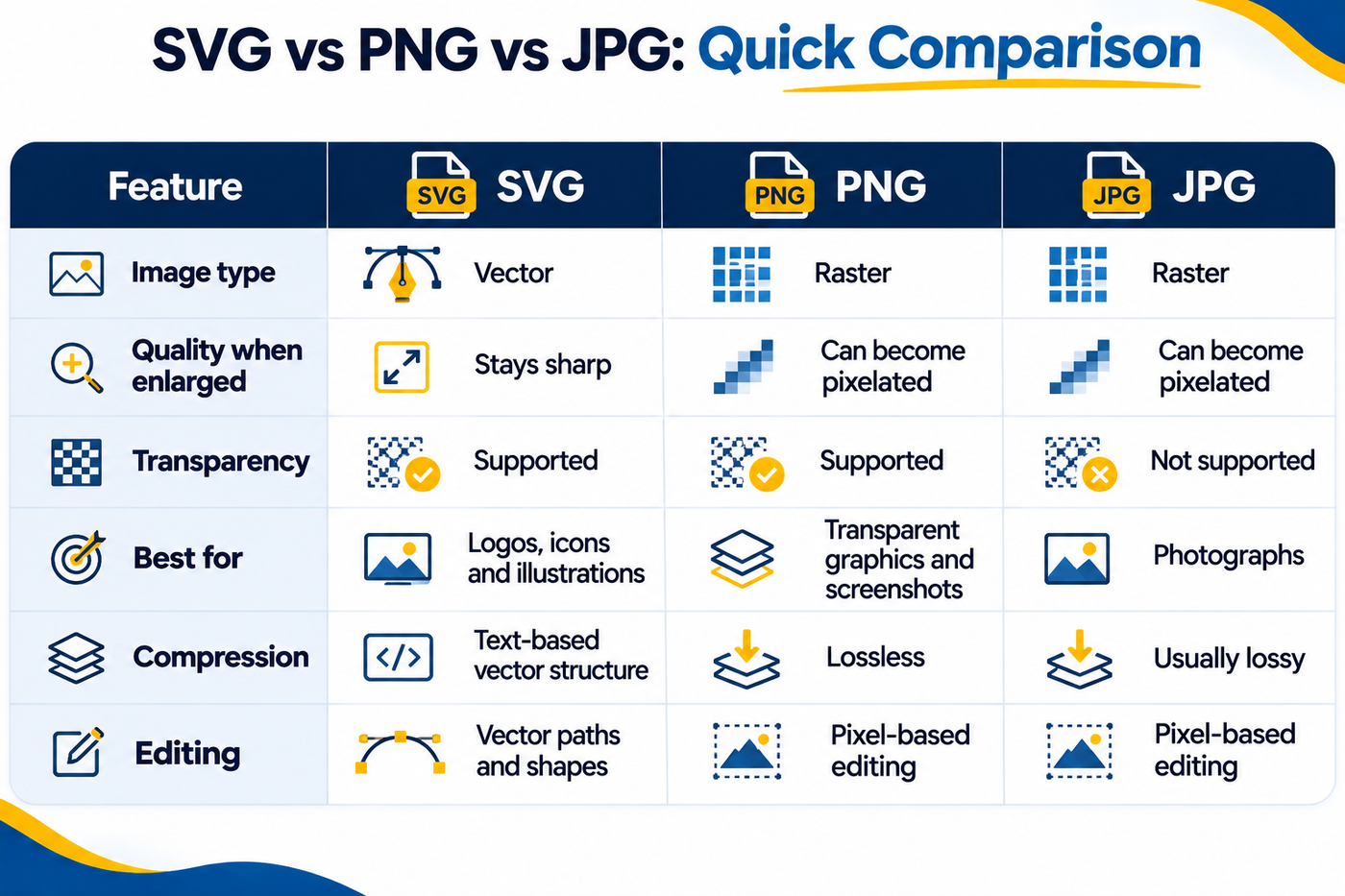
SVG, PNG and JPG are commonly used image formats, but they work differently. Understanding their differences can help you choose the right format for your website, logo or design project.
When should you use SVG?
Use SVG for logos, icons and simple illustrations that need to display clearly at different sizes.
When should you use PNG?
PNG is useful when you need a raster image with a transparent background. It is commonly used for screenshots, interface graphics and images where preserving pixel-level quality matters.
When should you use JPG?
JPG is generally suitable for photographs and realistic images. It can reduce file size through lossy compression, making it useful for many website images.
For example, if you are uploading a company logo to your website, SVG may be a suitable option. If you are uploading a team photograph, JPG is usually more appropriate.
Where Are Vector Files Used?
Vector files are used in many places, from small website icons to large outdoor advertisements.
Here are some everyday examples.
1. Logo Design and Branding
A business logo may appear on a website, business card, product package, social media profile and shop sign.
Creating the logo as a vector makes it easier to resize for different uses without losing sharpness.
2. Website Design
Websites use vector graphics for logos, icons, buttons, diagrams and illustrations.
SVG is especially useful because it can scale to different screen sizes while keeping its edges clear.
3. Printing and Advertising
Vector artwork is useful for posters, flyers, brochures, banners and signboards.
A logo designed as a vector can be used on a small visiting card or a large advertising board without becoming pixelated.
4. Product Packaging
Packaging designs often contain logos, text, shapes, icons and illustrations. Vector files make these elements easier to resize and edit during the design process.
5. T-Shirt and Merchandise Design
Vector graphics are commonly used for printed clothing, stickers, labels and promotional products.
Clean paths and shapes are especially useful when artwork needs to be cut or separated into colours.
6. Icons and Illustrations
Apps and websites use icons to help people understand different features. Vector graphics make these icons easier to adapt to different screen sizes.
What Is a Vector Logo and Why Do Businesses Need One?
A vector logo is a logo created using editable paths, shapes, lines and curves instead of a fixed collection of pixels.
Businesses use logos across different platforms and materials. The same logo might appear as a small website icon, a social media profile picture, a visiting card design or a large outdoor sign.
A vector version makes it easier to adapt the logo for these different purposes.
Why is a vector logo useful?
- Scalable design: The logo can be enlarged or reduced without losing the sharpness of its vector elements.
- Easy colour changes: Designers can adjust colours and individual shapes when needed.
- Flexible for printing: Vector artwork is useful for many print materials, including packaging, brochures and banners.
- Editable source file: Designers can make future changes without recreating the entire logo.
Which logo formats should a business keep?
It is useful to keep the original editable file, such as AI or CDR, along with an SVG version for suitable digital uses and a PNG version for applications that require a raster image.
A business should also check the requirements of its printer or design team before sharing a particular format.
What Are the Advantages of Vector Files?
Vector graphics offer several benefits, particularly when you work with logos and designs that need to be used in different sizes.
1. No quality loss when resizing
You can enlarge or reduce a vector graphic without making its edges blurry or pixelated.
2. Easy to edit
You can change the colour, shape, size or position of individual elements without recreating the entire design.
3. Useful for professional printing
Vector artwork is suitable for logos, lettering, illustrations and many large-format print projects.
4. Often smaller for simple designs
A simple vector logo can have a smaller file size than a high-resolution raster version of the same artwork. However, complex vector illustrations can also become large.
5. Reusable across different platforms
The same vector logo can be adapted for websites, business cards, packaging, banners and other brand materials.
What Are the Disadvantages of Vector Files?
Vector files are useful, but they are not the right choice for every image.
Here are a few limitations:
- Not ideal for photographs: Real photographs contain complex details, shadows and colour changes that are difficult to represent naturally using vector shapes.
- May require special software: Some formats need compatible design applications to open and edit properly.
- Compatibility problems: Certain effects, fonts or layers may not look exactly the same when a file is opened in another program.
- Complex designs can become large: Artwork containing many paths, shapes and effects may have a bigger file size.
- Editing can take practice: Working with paths, anchor points and curves may feel difficult for beginners.
For realistic photographs, raster formats such as JPG and PNG are usually more suitable.
How to Open and Edit a Vector File
You can open vector files using software that supports the format.
Here are some popular options:
How to Open an SVG File
If you have an SVG file, you can usually open it directly in a modern web browser.
You can also open it in a vector design application such as Adobe Illustrator or Inkscape to edit its shapes and paths.
How to Edit an AI File
AI files are best edited in Adobe Illustrator because it is their native application.
Some other design programs may import AI files, but certain effects or editing information may not transfer perfectly.
Can You Open a Vector File in Photoshop?
Yes, Photoshop can work with some vector artwork, including vector shapes and placed vector files.
However, Photoshop is primarily a raster-based image editor. When vector artwork is rasterized, it becomes pixel-based at the selected resolution.
If you want to keep paths and shapes editable, use a dedicated vector design application.
What Is an Editable Vector File?
An editable vector file is a file that allows you to make changes to its vector elements, such as shapes, lines, paths, colours and text.
For example, imagine a designer sends you a company logo. If the file is editable, you may be able to change the logo's colour, adjust the size of individual elements or modify its shape using compatible design software.
An exported image, on the other hand, may only contain a flattened version of the artwork.
What can you edit in a vector file?
Depending on the file and software, you may be able to:
- Change the colour of individual shapes.
- Adjust lines, curves and anchor points.
- Resize or reposition design elements.
- Add or remove objects.
- Modify text if it is still editable.
- Change fills, strokes and other design properties.
Which formats are useful for editable vector artwork?
AI and CDR are commonly used as editable source formats in their respective design applications. SVG can also contain editable vector paths and shapes.
PDF and EPS files may contain vector elements, but their editability depends on how they were created and exported.
Why should you keep an editable vector file?
Keeping the original source file makes future design changes easier. If you need a different logo colour, updated brand name or new packaging design, you may not need to recreate the artwork from scratch.
How to Convert a JPG or PNG into a Vector File
You may already have a logo or image saved as JPG or PNG and want to convert it into a vector format.
This process is called vectorization or image tracing.
Tools such as Adobe Illustrator's Image Trace and Inkscape's Trace Bitmap can detect shapes and create vector paths from an existing image.
Here is the basic process:
- Open your JPG or PNG in a vector editing application.
- Find the image tracing or vectorization tool.
- Adjust the settings to detect the shapes and colours.
- Generate the vector paths.
- Review the result and clean up unnecessary points.
- Save or export the artwork as SVG, AI, EPS or another supported format.
Can every JPG or PNG become a perfect vector file?
No. Simple logos, icons, drawings and illustrations usually produce better tracing results.
Photographs are much harder to convert because they contain many tiny details, shadows and colour variations. The result may look like a simplified illustration rather than the original photograph.
Can You Convert a PNG or JPG into a Vector File?
Yes, you can convert a PNG or JPG into a vector format using image tracing or vectorization tools. However, the quality of the result depends on the original image.
A simple black-and-white logo is generally easier to trace than a detailed photograph.
There is also an important difference between converting a file format and recreating vector artwork. Simply saving a JPG as an SVG does not automatically turn its pixels into editable vector shapes.
Automatic conversion vs manual vector tracing
- Automatic tracing: Software detects shapes, colours and edges in an image and generates vector paths. It is useful for simple artwork, but the result may need cleaning.
- Manual tracing: A designer recreates the artwork using paths, curves and shapes. This takes more time but can produce a cleaner and more accurate result.
If you are converting a business logo for professional use, review the final artwork carefully. Check the edges, spacing, colours and text before using it for printing or branding.
How to Choose the Right Vector File Format
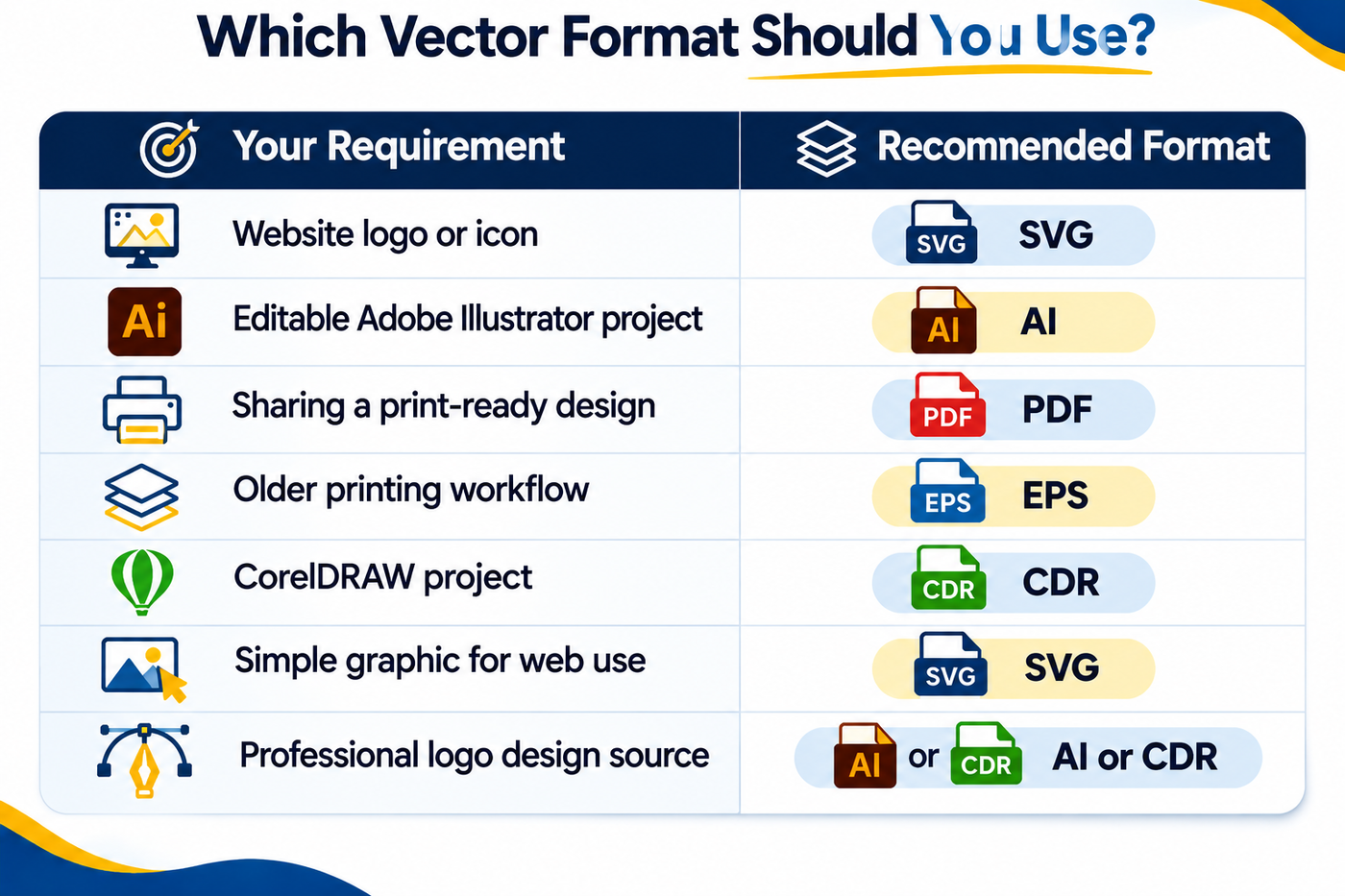
Choosing a vector format depends on where you want to use your design.
Infographic showing recommended vector file formats for different design requirements, including SVG, AI, PDF, EPS and CDR.
A simple tip: Keep the original editable design file and export a copy in the format required for your website, client or printer. This makes future changes much easier.
Vector Files and Website Performance
Vector graphics can also be useful for website design.
SVG files are based on XML, which makes their structure readable by browsers and compatible with web technologies. They can be used for logos, icons and simple illustrations.
However, using SVG does not automatically make a website faster or improve its Google rankings.
For better website performance:
- Use SVG for suitable logos, icons and simple graphics.
- Remove unnecessary code and metadata from SVG files.
- Avoid unnecessarily complex paths and effects.
- Use JPG or WebP for photographs where appropriate.
- Add meaningful alternative text to informative images.
- Test how graphics display on desktop and mobile screens.
The goal is to use the right image format for each part of your website.
Common Mistakes to Avoid When Using Vector Files
Even though vector graphics are flexible, a few common mistakes can cause problems during design, editing and printing.
Here are some things to watch out for:
1. Assuming every PDF or EPS is fully vector-based
A PDF or EPS file can contain raster images. Always check the actual artwork instead of relying only on the file extension.
2. Converting a JPG into SVG without checking the result
Changing the extension or saving an image in another format does not automatically create editable vector artwork. Use a proper tracing process and review the paths.
3. Sending the wrong format to a printer
Different printers and production workflows may require different file formats. Ask for their preferred format before sharing your artwork.
4. Forgetting about fonts
If a design contains text, the fonts may not display correctly on another computer if they are unavailable. Depending on the software and workflow, converting text to outlines can help preserve its appearance. Keep an editable copy before doing this.
5. Ignoring raster images inside vector documents
A vector document can contain embedded photographs or other raster elements. Those elements still have resolution limits, even if the document itself contains vector shapes.
6. Not keeping the original source file
Always keep a copy of the editable artwork. It makes future changes easier and reduces the need to recreate the design.
Final Thoughts
A vector file is one of the most useful file types in graphic design. It allows you to create artwork that can be resized, edited and reused without losing the sharpness of its shapes and lines.
If you are creating a business logo, website icon, illustration or print design, vector formats such as SVG, AI, EPS and CDR can be useful.
But remember, vector files are not meant to replace every image format. Use vectors for clean graphics and raster images for photographs and detailed visuals.
Understanding the difference will help you choose the right file format and avoid blurry designs when your artwork is used in different places.
Frequently Asked Questions About Vector Files
1. What is a vector file in simple words?
A vector file is an image made using lines, shapes and curves instead of pixels. It can be resized without losing its sharpness, which makes it useful for logos, icons and illustrations.
2. What is an example of a vector file?
SVG, AI, EPS and CDR are common vector file formats. PDF can also contain vector artwork, depending on how it was created.
3. Is a JPG a vector file?
No. JPG is a raster image format. It stores images as pixels, so enlarging a low-resolution JPG can make it blurry or pixelated.
4. Is PNG a vector or raster file?
PNG is a raster file format. It stores images as pixels and supports transparent backgrounds, but it cannot be enlarged indefinitely without losing image quality.
5. Is PDF a vector file?
A PDF can contain vector graphics, raster images and text. Whether it is a vector file depends on how the PDF was created.
6. Which vector file format is best?
It depends on your purpose. SVG is useful for websites, AI is suitable for Adobe Illustrator projects, PDF is commonly used for sharing and printing, and CDR is used in CorelDRAW workflows.
7. Can you convert JPG to a vector file?
Yes. You can use image tracing tools in applications such as Adobe Illustrator or Inkscape. However, detailed photographs may not convert cleanly into vector artwork.
8. Can vector files be printed?
Yes. Vector graphics are widely used for printing logos, posters, banners, business cards and other designs because they retain sharp edges when resized.
9. Can I edit a vector file?
Yes. You can edit vector files using compatible applications such as Adobe Illustrator, Inkscape and CorelDRAW. The editing options depend on the file format and software.
10. Which is better: vector or raster?
Neither is always better. Vector is better for logos, icons and illustrations that need resizing. Raster is better for photographs and images with complex details.
11. Does a vector file lose quality when enlarged?
No. Vector artwork can be enlarged or reduced without losing the sharpness of its paths and shapes. However, any raster images placed inside the vector document can still lose quality.
12. What software is used to create vector files?
Adobe Illustrator, Inkscape, CorelDRAW, Affinity Designer and Figma are among the tools used to create or work with vector graphics. Their format support and editing features vary.
13. Is SVG better than PNG for websites?
SVG is often better for logos, icons and simple illustrations because it can scale without losing sharpness. PNG is useful for raster graphics that need transparent backgrounds. The right choice depends on the type of image.
14. Can Canva create vector files?
Canva supports SVG uploads and exports on supported plans and for eligible designs. However, not every design element or effect necessarily exports as editable vector artwork. Check the exported file before using it professionally.
15. Is an AI file the same as a vector file?
AI is Adobe Illustrator's native file format and is commonly used for vector artwork. However, an AI document can also contain placed raster images, so not every element inside it is necessarily vector-based.
16. Can I print a vector file in any size?
Vector artwork can generally be resized without losing the sharpness of its paths and shapes. However, the final print quality also depends on the printer, material and any raster images included in the design.
17. How do I know if my logo is in vector format?
Check the file extension and open it in a vector editing application. If you can select and edit individual paths and shapes, the artwork contains vector elements. Simply having an SVG, PDF or EPS extension does not guarantee that the entire logo is vector-based.
18. Can Photoshop create vector graphics?
Photoshop supports vector shapes and paths, but it is primarily a raster-based image editor. For creating and editing complete vector illustrations, dedicated applications such as Adobe Illustrator or Inkscape are generally more suitable.
19. What vector file format should I send to a printer?
The preferred format depends on the printer and production requirements. PDF, AI, EPS and CDR may be accepted in different workflows. Always confirm the required format before sending the final artwork.
20. What is an editable vector file?
An editable vector file contains vector elements such as paths, shapes and curves that can be modified using compatible software. AI, CDR and SVG files can contain editable vector artwork, depending on how they were created.
21. What is the difference between SVG, PNG and JPG?
SVG is a vector format, while PNG and JPG are raster formats. SVG is suitable for scalable graphics, PNG is useful for transparent images, and JPG is commonly used for photographs.
22. Can I convert a photograph into a vector file?
Yes, image tracing tools can convert a photograph into vector paths. However, the result usually simplifies the original image and may not preserve all its realistic details, colours and textures.