
PNG vs JPG: Choosing the Right Image Format for Graphic Design and Branding
 Sachin Gupta29 Oct 2026
PNG vs JPG: Understand the key differences in image quality, file size, transparency and compression, and learn which image format is best for your website.
Summarize this article with AI
You have an image ready for your website, blog, presentation or social media post. Now comes a small but important question: should you save it as PNG or JPG?
Both formats are widely used, but they do different jobs. Choose the wrong one and your photograph might take up more space than necessary, or your logo might end up with a white background you never wanted.
PNG is usually better for logos, screenshots, graphics with text and images that need a transparent background. JPG is usually better for photographs where a smaller file size matters. The right choice depends on what the image contains, how it will be used and how much quality you need to preserve.
This guide is for website owners, bloggers, designers, students and anyone who needs to choose an image format for websites, documents, presentations or social media.
Let's understand the difference with simple examples so you can choose the right format without guessing.
What Is the Difference Between PNG and JPG?
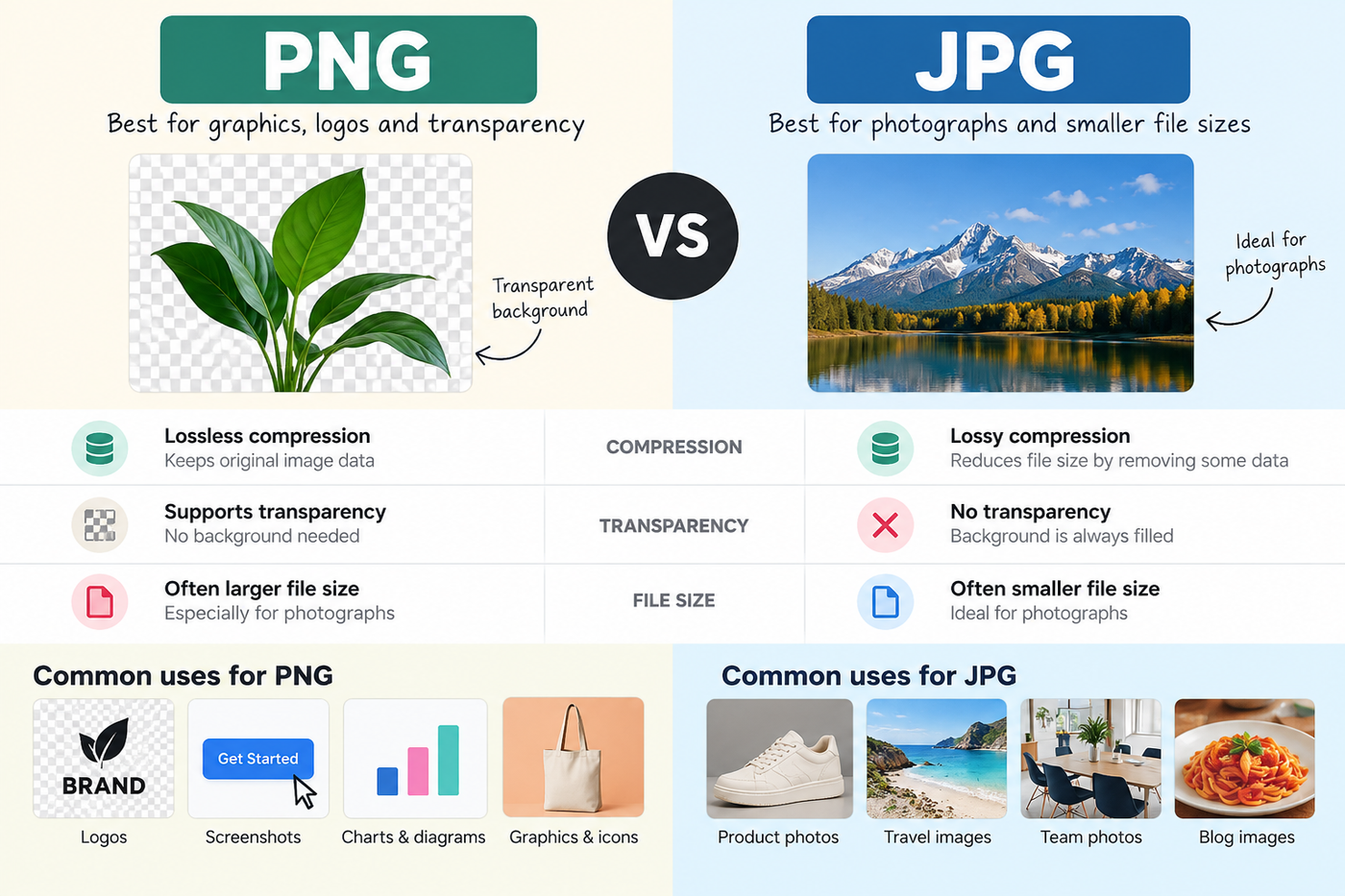
PNG and JPG are two image formats that store and compress digital pictures differently. The biggest difference is how they handle image details, file size and transparency.
- PNG: Uses lossless compression, which preserves image data during PNG compression. It also supports transparent backgrounds.
- JPG: Uses lossy compression, which reduces file size by discarding some image information. It works particularly well for photographs.
- File size: JPG photographs are often smaller than equivalent PNG files, although the result depends on the image and compression settings.
- Transparency: PNG supports transparency. JPG does not.
Think of it this way: if you need a clean logo with no background, PNG is often the practical choice. If you want to upload a photograph of a product, JPG is usually a good starting point.
Neither format is automatically better for every image.
What Is a PNG File?
PNG stands for Portable Network Graphics. It is an image format known for lossless compression and support for transparent backgrounds.
Imagine you have a logo with a blue symbol and black text. You want to place it on a white website, a coloured banner and a presentation slide.
A PNG with a transparent background lets the design sit on different backgrounds without showing an unwanted white rectangle around it.
When Does PNG Work Well?
PNG is useful for:
- Logos and icons that need a transparent background
- Screenshots containing text or interface details
- Diagrams, charts and simple illustrations
- Graphics with sharp edges and clearly defined shapes
- Images where preserving the original pixel data matters
Does PNG Always Give Better Quality?
No. PNG preserves image data during lossless compression, but it cannot restore detail that was already lost in an earlier JPG conversion.
It can also create much larger files than JPG when used for photographs. Saving a photograph as PNG does not magically make it more detailed; it may simply make the file larger.
Choose PNG when preserving fine details or transparency matters more than getting the smallest possible file.
What Is a JPG File?
JPG, also written as JPEG, is a popular image format that uses lossy compression.
When you save an image as JPG, the compression process removes some image information to reduce the file size. At reasonable quality settings, the result can still look very close to the original.
This makes JPG particularly useful for photographs, where colours and gradual changes in light matter more than perfectly sharp edges.
When Does JPG Work Well?
JPG is a good option for:
- Product photographs
- Team and office photographs
- Travel and lifestyle images
- Blog photographs
- Other detailed pictures containing many colours and gradients
What Is the Drawback of JPG?
JPG does not support transparency. If you save a logo with a transparent background as JPG, the transparent areas must be filled with a solid background.
Repeatedly editing and saving a JPG can also introduce additional compression loss, depending on the software and settings used.
Choose JPG when you need a compact format for photographs and transparency is not required.
PNG vs JPG: Key Differences at a Glance
Here is a quick comparison to help you decide.
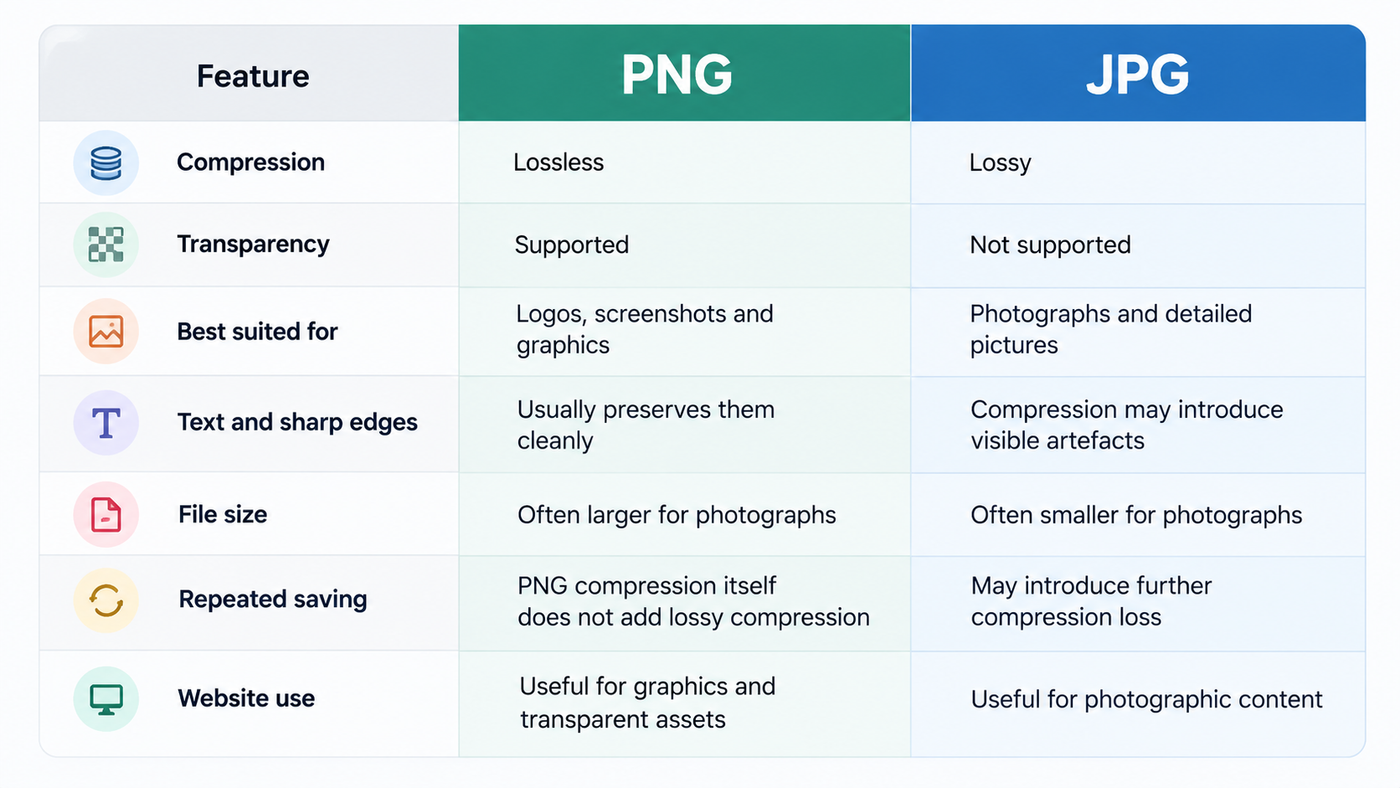
These are general guidelines, not fixed rules. Actual file size and visual quality depend on the source image, dimensions, compression settings and the format used to create it.
Which Format Gives Better Image Quality?
Neither format gives better results in every situation. PNG is preferable when you need lossless compression, while JPG is often a practical choice for photographs where a smaller file matters.
Consider two examples.
Example 1: A Screenshot of a Website
A screenshot contains small letters, buttons, borders and straight lines.
If you save it using aggressive JPG compression, text edges may look fuzzy and coloured artefacts may appear around letters. PNG is often a better choice for keeping those details clear.
Example 2: A Photograph of a Product
A product photograph contains shadows, reflections, colours and gradual changes in light.
JPG can compress this type of image efficiently while keeping it visually appealing at an appropriate quality setting. PNG may preserve the data but produce a much larger file.
The lesson is simple: choose the format based on what the image contains, not just on which extension sounds higher quality.
Which Format Has a Smaller File Size?
There is no universal file size for either format. A JPG photograph is often smaller than its PNG version, but a simple graphic with a limited number of colours may compress efficiently as PNG.
Let's look at an illustrative example.
Imagine you have a product photograph that is 2 MB as PNG. You export it as JPG at a suitable quality setting, and the resulting file is 350 KB.
In this example, the JPG is much smaller. However, these numbers are only an illustration, not a benchmark for every image.
A smaller file can help a webpage download more quickly, especially for visitors using slower connections. But image format is only one part of website performance. Dimensions, compression quality, the number of images and how they load also matter.
Before uploading an image, ask two questions:
- Does the image need transparency or very sharp graphic details?
- Can I reduce its file size without making it look noticeably worse?
The best result is a file that looks good at its intended display size without carrying unnecessary data.
When Should You Use PNG?
Choose PNG when the image needs transparency, crisp graphic details or lossless compression.
1. Logos With Transparent Backgrounds
A transparent logo can sit on different website backgrounds without showing an unwanted white box.
2. Screenshots With Readable Text
If you are publishing a tutorial, software walkthrough or website audit, PNG is a sensible option for screenshots that contain small text and interface elements.
3. Charts and Diagrams
Charts often contain thin lines, labels and small numbers. PNG can preserve these details more cleanly than a heavily compressed JPG.
4. Graphics With Sharp Edges
Illustrations, simple icons and designs with solid colour areas can benefit from PNG's lossless compression.
One thing to remember: if you are creating a graphic for a website, WebP may also be worth considering. It supports transparency and can produce smaller files, depending on the image and encoding settings.
When Should You Use JPG?
Choose JPG when you are working with photographs and want a manageable file size.
1. Product Photographs
An online store may contain hundreds of product images. JPG can help keep photographic files compact while maintaining an acceptable visual result.
2. Blog Images
Photographs used within blog posts are often suitable for JPG, particularly when transparency is unnecessary.
3. Team and Office Photographs
Photos of people, interiors and everyday business activities usually work well with JPG compression.
4. Images With Many Colours and Gradients
JPG is designed to compress photographic content efficiently, making it a practical option for many images with smooth colour transitions.
However, avoid using JPG for a graphic that must retain transparency or contain extremely sharp text if compression creates visible artefacts.
PNG vs JPG for Websites: Which Is Better?
Neither format is the best choice for every image on a website. The right format depends on the image's purpose. A transparent brand logo has different needs from a photograph inside a blog article.
For a typical business website, a practical starting point is:
- Logo: PNG if a raster image with transparency is needed; SVG may be better for a suitable vector logo.
- Product photograph: JPG or WebP, depending on the image and compression result.
- Blog photograph: JPG or WebP.
- Screenshot with small text: PNG or lossless WebP.
- Transparent graphic: PNG or WebP.
- Simple icon: SVG when available and appropriate.
Does Image Format Affect Website Speed?
Yes, it can. Large image files require more data to download, so choosing an efficient format and appropriate dimensions can help reduce the amount of data a page needs.
But changing every PNG to JPG is not a good performance strategy. You might lose transparency or make text and edges look worse.
Instead, check the image itself, select a suitable format and compress it carefully.
For more context on how a page's overall experience affects visitors, read our guide to landing page optimization.
If a website is struggling to turn visitors into enquiries, image optimization may be one area to review alongside page content, navigation and calls to action. Our article on why your website is not generating leads covers other possible reasons.
What About WebP and AVIF?
PNG and JPG are not the only image formats available today. WebP and AVIF are modern formats that can offer efficient compression, with support for features such as transparency.
Both can be useful for websites, depending on the image and the way it is encoded.
WebP
WebP supports both lossy and lossless compression, as well as transparency and animation. It can be a useful choice for photographs and graphics when you want to reduce file size without sacrificing too much visual quality.
AVIF
AVIF can provide strong compression and supports features including transparency and high colour depth. However, compatibility requirements should be considered for the environments your website needs to support.
Should You Use WebP Instead of PNG or JPG?
For many websites, WebP is worth testing because it can produce smaller files while retaining good visual quality. But compare the actual output rather than assuming it will always be smaller.
For example, you could export a product photograph as JPG and WebP, then compare their file sizes and appearance at the same display dimensions.
If your website uses a modern image pipeline, it may also serve different formats to supported browsers with a fallback option.
The important thing is to choose a format that balances image quality, file size, transparency needs and compatibility.
A Simple Example: Choosing the Right Format for a Business Website
Imagine a small business is preparing a website with a logo, product images, a team photograph and screenshots showing its services.
The owner saves every image as PNG because it sounds like the higher-quality option.
The logo looks good, but several photographs become unnecessarily large. The owner now has more image data to upload and maintain.
Here is a more practical approach:
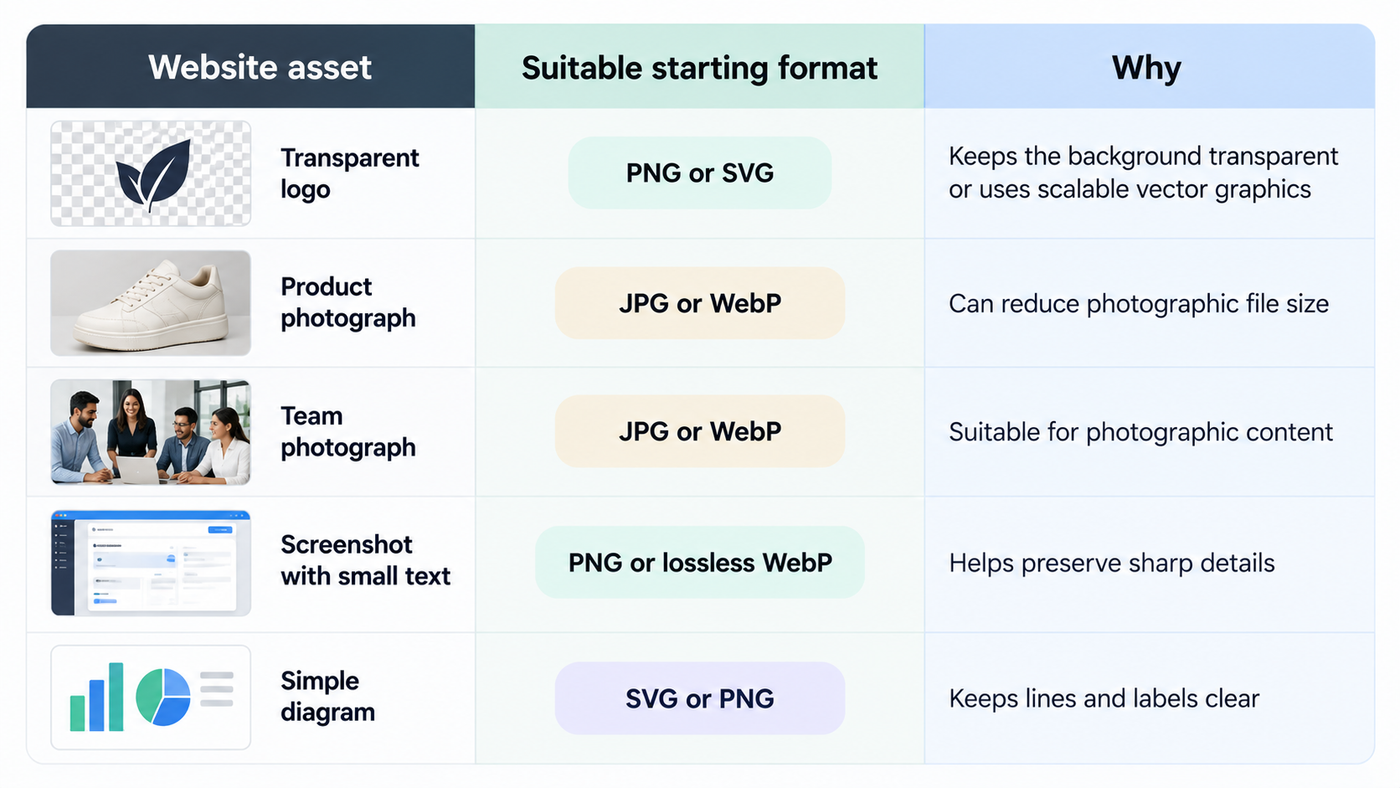
This is an illustrative scenario, not a measured performance test. Actual results depend on the files and export settings.
The takeaway is that you do not need to use one image format for the entire website. Different assets can use different formats.
How to Choose the Right Image Format
Before saving or uploading an image, follow these simple steps.
Step 1: Identify the Type of Image
Is it a photograph, logo, screenshot, chart or illustration? Photographs often work well with JPG or WebP, while screenshots and sharp graphics may benefit from PNG or lossless WebP.
Step 2: Check Whether You Need Transparency
If the image needs a transparent background, do not use JPG. Choose PNG, WebP or a suitable vector format instead.
Step 3: Compare File Sizes
Export the image in two suitable formats and compare their sizes. Make sure you compare images at the same dimensions so the result is meaningful.
Step 4: Inspect the Visual Quality
Zoom in on small text, thin lines, edges and important details. A smaller file is not useful if it makes the image look noticeably worse.
Step 5: Consider Where the Image Will Appear
A large photograph displayed across a website banner may need different dimensions and compression from a small thumbnail or icon.
Step 6: Optimize It for the Web
Use appropriate dimensions, descriptive filenames and meaningful alt text. Avoid uploading an unnecessarily large image when a smaller version would look just as good at its intended display size.
For more guidance on descriptive filenames and alt text, see Google's image SEO best practices.
Frequently Asked Questions
1. Is PNG Better Than JPG?
PNG is better for images that need transparency, sharp graphic details or lossless compression. JPG is often better for photographs because it can produce smaller files. The best choice depends on the image and how you plan to use it.
2. Is JPG the Same as JPEG?
Yes. JPG and JPEG refer to the same image format. The different extensions exist largely because older systems commonly used three-character file extensions.
3. Which Has a Smaller File Size, PNG or JPG?
JPG is often smaller for photographs because it uses lossy compression. However, file size depends on image content, dimensions and compression settings, so the result is not guaranteed for every file.
4. Can a JPG Image Have a Transparent Background?
No. JPG does not support transparency. If you need a transparent background, use a format such as PNG or WebP, or a suitable vector format such as SVG.
5. Does Converting JPG to PNG Improve Image Quality?
No. Converting a JPG to PNG does not restore details already lost through JPG compression. PNG can preserve the current image data without adding further lossy compression, but it cannot recover the original details.
6. Which Image Format Is Best for Websites?
There is no single best format for every website image. JPG and WebP are useful for many photographs, PNG is useful for transparent graphics and screenshots, and SVG is suitable for many logos and icons. Choose based on quality, file size and the image's purpose.
7. Should I Use PNG or JPG for a Logo?
PNG is a practical option when you need a transparent raster logo. If the logo is available as a properly created SVG, that may be better because vector graphics can scale without becoming pixelated.
8. Is PNG Better for Screenshots?
PNG is generally a good choice for screenshots containing text, small interface details or sharp edges because its lossless compression avoids introducing additional lossy-compression artefacts. Lossless WebP is another option worth considering.
9. Does JPG Reduce Image Quality?
Yes. JPG uses lossy compression, which discards some image information to reduce file size. At appropriate settings, the visual difference may be difficult to notice, but aggressive compression can create visible artefacts.
10. Should I Convert All My Website Images to WebP?
Not automatically. WebP can reduce file sizes for many images, but you should compare the result, preserve transparency where required and check your website's image delivery setup. There is no need to convert files that are already optimized without a clear benefit.
Final Thoughts
Choosing between PNG and JPG becomes much easier when you stop thinking of one as universally better than the other.
Use PNG when you need transparency, sharp graphics or lossless compression. Use JPG when you are working with photographs and want a compact file without a noticeable drop in visual quality. For website images, consider WebP or AVIF where appropriate, and always check the actual result.
The simplest rule is this: choose the format that fits the image, not the format you use most often. A few careful choices can help you keep your graphics clear and your website images efficient.