Photoshop vs Photopea: Features, Differences & Comparison
 Sachin Gupta12 Nov 2026
Compare Photoshop vs Photopea features, pricing, AI tools and PSD support to find the right image editor for your needs.
Summarize this article with AI
Quick Answer: Is Photopea a Good Free Alternative to Photoshop?
Yes. Photopea is a capable free Photoshop alternative for many everyday image-editing tasks, including working with layers, masks, text, selections, image adjustments and PSD files. It runs in a web browser, so you can start editing without installing a traditional desktop application.
However, Photopea is not a complete replacement for Adobe Photoshop. Photoshop offers a deeper professional workflow, advanced image manipulation, extensive integrations and newer AI-powered editing capabilities.
If you need to resize images, remove backgrounds, edit PSD files or create simple marketing graphics, Photopea may be enough. If you regularly work with complex compositions, professional retouching, advanced colour workflows or specialised tools, Photoshop is likely to be the better choice.
The right option depends on the type of work you do, how often you edit images and whether the additional features justify the cost.
What Is Adobe Photoshop?
Adobe Photoshop is a professional image-editing and graphic design application developed by Adobe. It is widely used for photo retouching, digital artwork, image manipulation, advertising creatives, product photography and other visual projects.
Photoshop provides a detailed editing environment with tools for working on individual layers, selections, masks, colour adjustments, typography and complex compositions.
It also includes AI-powered features through Adobe Firefly and other integrated models. These help users generate, modify, remove and extend image content while maintaining control over the editing process.
Photoshop is available through Adobe's subscription offerings, with desktop and other platform experiences depending on the plan and device.
It is particularly useful when image editing is a regular part of your professional workflow.
What Is Photopea?
Photopea is a browser-based image editor that offers many tools and workflows familiar to Photoshop users. You can open Photopea in a browser and start editing without installing a conventional desktop application.
One of its biggest advantages is its support for PSD files. It also works with a wide range of other image and design formats, making it useful when you need to edit files created in different applications.
Photopea includes features such as:
- Layers and layer masks
- Selection and cropping tools
- Text and shape tools
- Adjustment layers
- Blending modes
- Filters and image transformations
- Smart objects
- PSD file editing
- Support for several raster, vector and RAW formats
Photopea is especially useful for people who need Photoshop-style editing tools but do not want to commit to a paid desktop application.
You can access it at Photopea's official website.
Photoshop vs Photopea: Feature Comparison
The biggest difference between Photoshop and Photopea is not simply the number of tools available. It is how much control each application provides when working on complex projects.
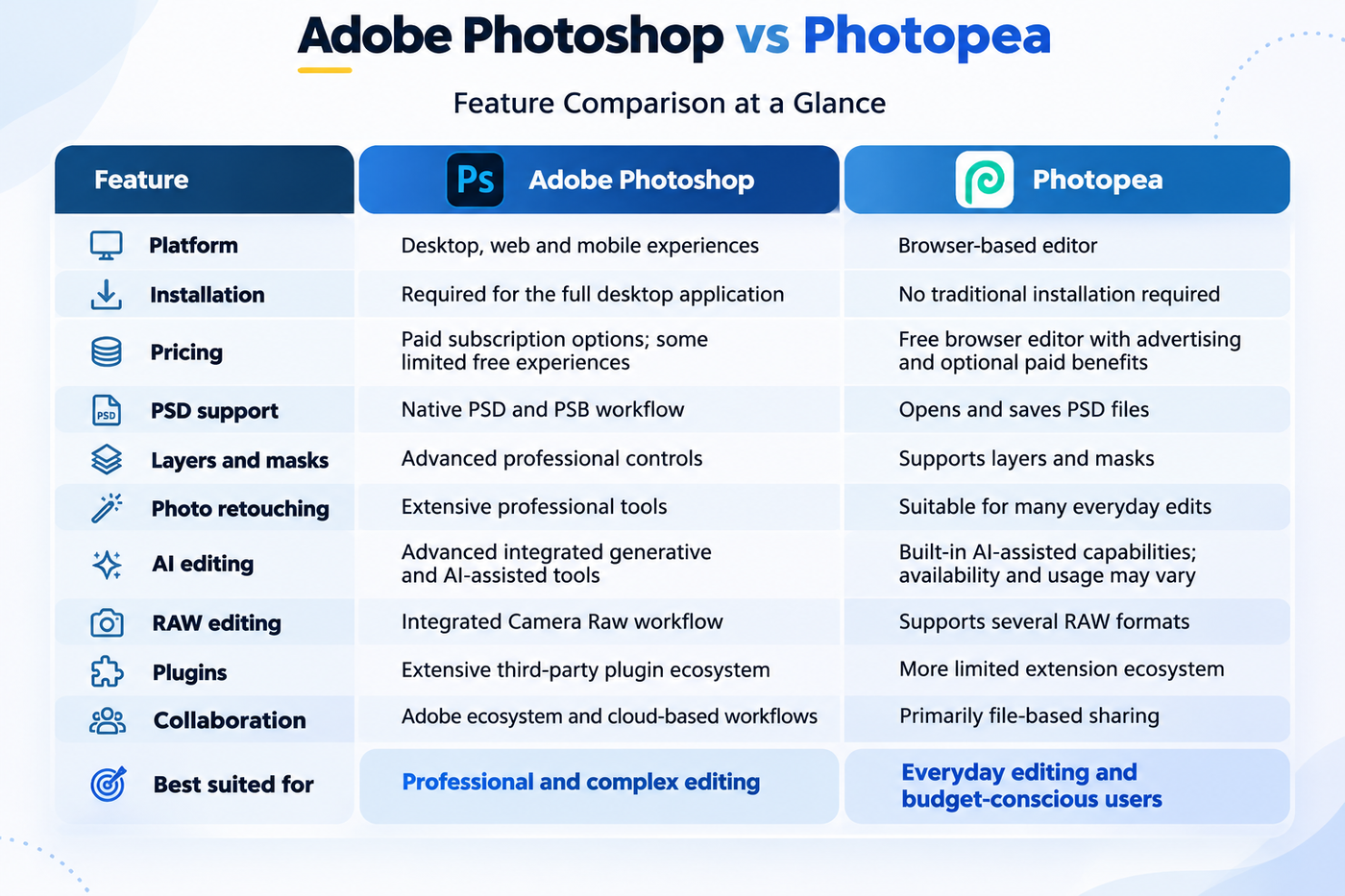
The table gives a broad overview. Individual capabilities can depend on the application version, file type, device and subscription.
Photoshop vs Photopea: Which Has Better Editing Features?
Photoshop has the advantage when you need extensive control over an image. Photopea, however, covers many editing tasks that people perform regularly.
1. Layers and Masks
Both tools support layers and masks, which are essential for non-destructive editing.
In Photoshop, you can combine multiple layers, apply masks, use adjustment layers and build detailed compositions. Its advanced controls are particularly useful when working on complicated advertising creatives, product images or professional photo composites.
Photopea also provides layers, masks and blending modes. You can separate elements, adjust individual parts of an image and edit PSD projects.
Which is better? Photoshop is stronger for complex layered workflows, but Photopea is sufficient for many standard editing projects.
2. Background Removal and Object Editing
Removing backgrounds is one of the most common reasons people search for an image editor.
Photoshop offers advanced selection and masking tools, along with AI-assisted features that can help remove unwanted objects and refine image details.
Photopea also provides background-removal and AI-assisted editing options. However, the available functionality and usage conditions should be checked inside the editor before relying on it for a regular production workflow.
Which is better? Photoshop offers more advanced control, especially when dealing with hair, transparent objects, difficult edges and detailed compositions.
3. Photo Retouching
Photoshop is widely used for skin retouching, portrait editing, product photography and detailed image correction.
Its professional retouching tools provide more control over texture, colour, lighting and small image details.
Photopea can handle basic retouching, blemish correction, cropping and colour adjustments. It is a practical option when you do not need an extensive retouching workflow.
Which is better? Photoshop is the stronger choice for professional retouching. Photopea works well for simpler corrections.
4. AI-Powered Editing
AI has become an important part of modern image editing.
Adobe Photoshop includes AI-assisted workflows such as Generative Fill, Generative Expand, object removal and other tools powered by Adobe Firefly and available partner models.
Adobe's November 2026 desktop release notes also describe newer capabilities, including Relight, Quick Compare, Generative Restyle, an upgraded Remove tool, AI Assistant and improvements to large PSD and PSB file handling.
Photopea also offers AI-assisted capabilities, but its feature set and usage conditions should not be assumed to match Photoshop's. Check the official editor for current availability and any usage limits.
Which is better? Photoshop has a more extensive integrated AI editing ecosystem as of November 2026.
Does Photopea Support PSD Files?
Yes. Photopea supports opening and saving PSD files, which is one of its most useful features.
This means you can receive a Photoshop project from someone else, open it in Photopea and continue editing many of its elements without having Photoshop installed.
However, file compatibility does not mean every project will behave identically in both applications.
Some Photoshop-specific effects, advanced features, fonts, smart objects or adjustment behaviours may not transfer perfectly. Complex files should always be checked after opening.
Before delivering a project, verify:
- Whether all layers are visible and correctly positioned
- Whether text and fonts appear as expected
- Whether masks and blending modes are preserved
- Whether effects and adjustments look correct
- Whether the exported image has the required dimensions and quality
If a client or team member requires a fully editable Photoshop project, test the actual PSD file before making Photopea your primary editor.
Is Photopea Really Free?
Photopea offers a free browser-based editing experience supported by advertising. It also offers optional Premium benefits.
This makes it attractive to people who only need image editing occasionally or do not want another monthly software subscription.
However, free access does not automatically mean every feature, convenience or usage condition is unlimited. Advertising, storage, history and AI-related usage can have different conditions.
Check the current details on the official Photopea website before purchasing an optional plan.
Is Adobe Photoshop Worth Paying For?
Photoshop can be worth the cost when its advanced features save time, improve output quality or support work that a simpler editor cannot handle efficiently.
Consider paying for Photoshop if:
- You edit images professionally every day.
- You work with complex PSD or PSB files.
- You need advanced photo retouching and compositing.
- You rely on Adobe Camera Raw or specialised Photoshop workflows.
- You use third-party plugins and Adobe integrations.
- You need more advanced AI-assisted editing.
- Your clients or team members use Photoshop as their standard tool.
If you only edit a few images every week, paying for a professional application may not be necessary.
The best decision is to compare the actual features you use with the cost of maintaining the subscription.
Photoshop vs Photopea: Which Is Better for Different Users?
There is no single winner for everyone. The right tool depends on the work you need to complete.
For Students
Photopea is a useful starting point for students learning image editing. It offers layers, masks, selections, text and other familiar design tools without requiring a paid desktop application.
Students who plan to pursue professional design careers may also benefit from learning Photoshop because it is widely used in professional creative workflows.
Recommendation: Start with Photopea if you are learning or working with a limited budget.
For Freelancers
Freelancers working on social media graphics, thumbnails, simple promotional creatives and basic photo edits can complete many projects in Photopea.
However, freelancers who handle detailed client retouching, advanced composites or specialised PSD workflows may find Photoshop more suitable.
Recommendation: Choose Photopea for simpler projects and Photoshop when your client work requires advanced editing.
For Small Businesses
Small businesses often need to resize product images, prepare website graphics, create promotional visuals and make occasional image corrections.
Photopea can handle many of these tasks without adding another regular software expense.
If the business produces a high volume of visual content or needs professional product photography, Photoshop may be a better investment.
Recommendation: Photopea is a practical starting point for small businesses with basic editing needs.
For Professional Designers
Professional designers often need more than basic image editing. They may work with complex compositions, advanced colour management, detailed retouching, plugins and multiple creative applications.
Photoshop offers a more complete environment for these workflows.
Recommendation: Photoshop is generally the stronger option for professional designers who depend on advanced image editing.
For Content Creators and Marketers
Content creators and marketers frequently edit YouTube thumbnails, social media images, blog graphics and promotional creatives.
Photopea can handle many of these everyday requirements. Photoshop becomes more useful when the work involves detailed composites, extensive retouching or advanced AI editing.
Recommendation: Choose based on the complexity and frequency of your content production.
1. Photoshop vs Photopea vs GIMP: Which Free Image Editor Is Better?
Photoshop and Photopea are not the only options for image editing. GIMP is another popular alternative, especially for users who want a free desktop application.
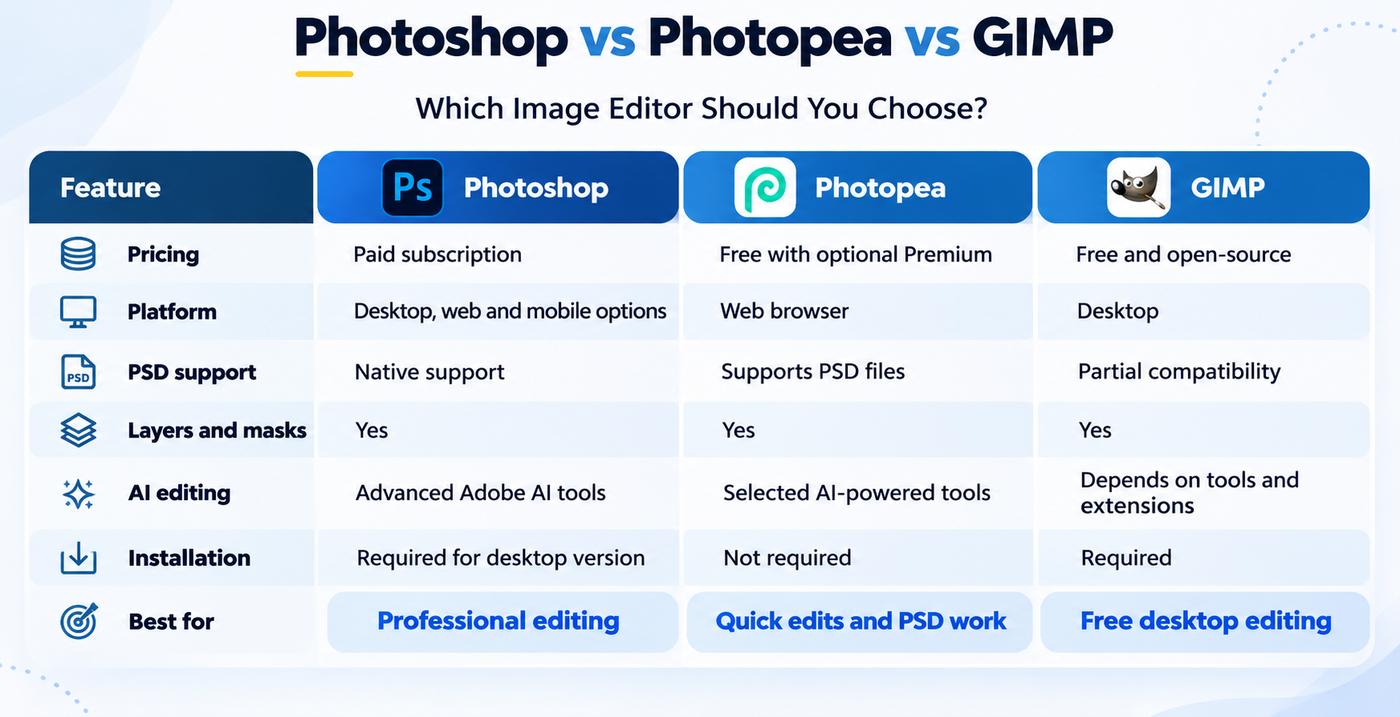
Which one should you choose?
- Choose Photoshop if you need advanced editing, professional workflows and Adobe integration.
- Choose Photopea if you want to edit PSD files online without installing software.
- Choose GIMP if you prefer a free, open-source desktop image editor.
Photopea is convenient for browser-based editing, while GIMP offers a more traditional desktop experience. Neither completely replaces Photoshop for every professional workflow.
2. How to Open and Edit a PSD File Without Photoshop
You do not necessarily need Adobe Photoshop to open a PSD file. Photopea allows users to open and edit PSD files directly in a browser.
Here is how to do it:
- Open the official Photopea website.
- Select File → Open.
- Choose the PSD file from your computer.
- Wait for the document and its supported layers to load.
- Make the required changes using the editing tools.
- Select File → Save as PSD to save the project, or export it in another supported format.
Can you edit PSD files without losing layers?
Photopea supports layered PSD editing, but complex Photoshop documents may contain effects, fonts, smart objects or features that do not transfer perfectly. Always check the appearance of the file before exporting or sharing it.
3. Photoshop vs Photopea for YouTube Thumbnails
Both tools can help creators design YouTube thumbnails, but the better option depends on the type of editing required.
Photopea is suitable for:
- Creating thumbnails using text and images.
- Removing backgrounds from product or subject images.
- Working with PSD thumbnail templates.
- Adding shapes, shadows and basic effects.
- Making quick edits without installing software.
Photoshop is useful for:
- Detailed subject and background separation.
- Advanced photo manipulation.
- Complex lighting and colour adjustments.
- Creating custom thumbnail compositions.
- Using advanced AI editing features.
For regular thumbnails, Photopea can be enough. However, creators who frequently work with complex compositions and detailed image manipulation may find Photoshop more suitable.
4. Can Photopea Handle Large PSD Files?
Photopea can open and edit PSD files, but performance depends on the file size, number of layers, image dimensions, available memory and browser capabilities.
A small PSD with a few layers should generally be easier to handle than a large project containing hundreds of layers, complex smart objects and multiple effects.
If Photopea becomes slow:
- Close unnecessary browser tabs.
- Avoid keeping multiple large projects open.
- Reduce the image dimensions if the original resolution is not required.
- Save your work regularly.
- Try the file on a device with more available memory.
For very large or complex professional projects, Photoshop may offer a more suitable workflow. However, actual performance should be tested on the device and files you use rather than assumed from file size alone.
Can You Use Photopea Without Installing Software?
Yes. Photopea works in a modern web browser, so you do not need to install a traditional desktop application.
This is helpful when:
- You use a Chromebook or Linux computer.
- You are working on a shared computer.
- You need to make a quick image correction.
- You do not have permission to install desktop software.
- You need to open a PSD file while away from your main workstation.
However, browser-based editing still uses your device's available processing power and memory. Large projects can become demanding, especially on devices with limited resources.
For a smoother experience, use an updated browser and avoid keeping too many resource-heavy tabs open while editing.
Is Photopea Safe for Editing Private Images?
Photopea states that image editing takes place locally in your browser and that files are not uploaded to its servers as part of the normal editing process.
That is a useful privacy consideration, but it should not be treated as a blanket security guarantee.
Before working with confidential business images, client assets or sensitive photographs:
- Confirm that you are using the official Photopea website.
- Review its current privacy policy.
- Understand where any cloud-stored files are kept.
- Avoid uploading confidential material to optional third-party services without permission.
- Follow your organisation's data-handling requirements.
The same principle applies to Photoshop: understand whether a particular workflow uses local processing, cloud storage or online AI services.
What Are the Limitations of Photopea?
Photopea is capable, but there are situations where its limitations become important.
1. Complex Projects: Very large files and complicated compositions can be demanding for browser-based editing.
2. Advanced Retouching: Photoshop provides a deeper range of professional retouching and image-manipulation workflows.
3. Plugin Ecosystem: Photoshop has a much broader ecosystem of third-party plugins and integrations.
4. File Compatibility: Some advanced Photoshop features may not translate perfectly when a PSD is opened in another editor.
5. Browser Dependence: Your experience depends on your browser, device memory and available processing resources.
6. Team Workflows: Photopea is not a direct replacement for a full professional creative collaboration environment.
These limitations do not make Photopea a poor editor. They simply define the type of work for which it is most suitable.
Photoshop vs Photopea: Which One Should You Choose?
Use this quick decision guide:
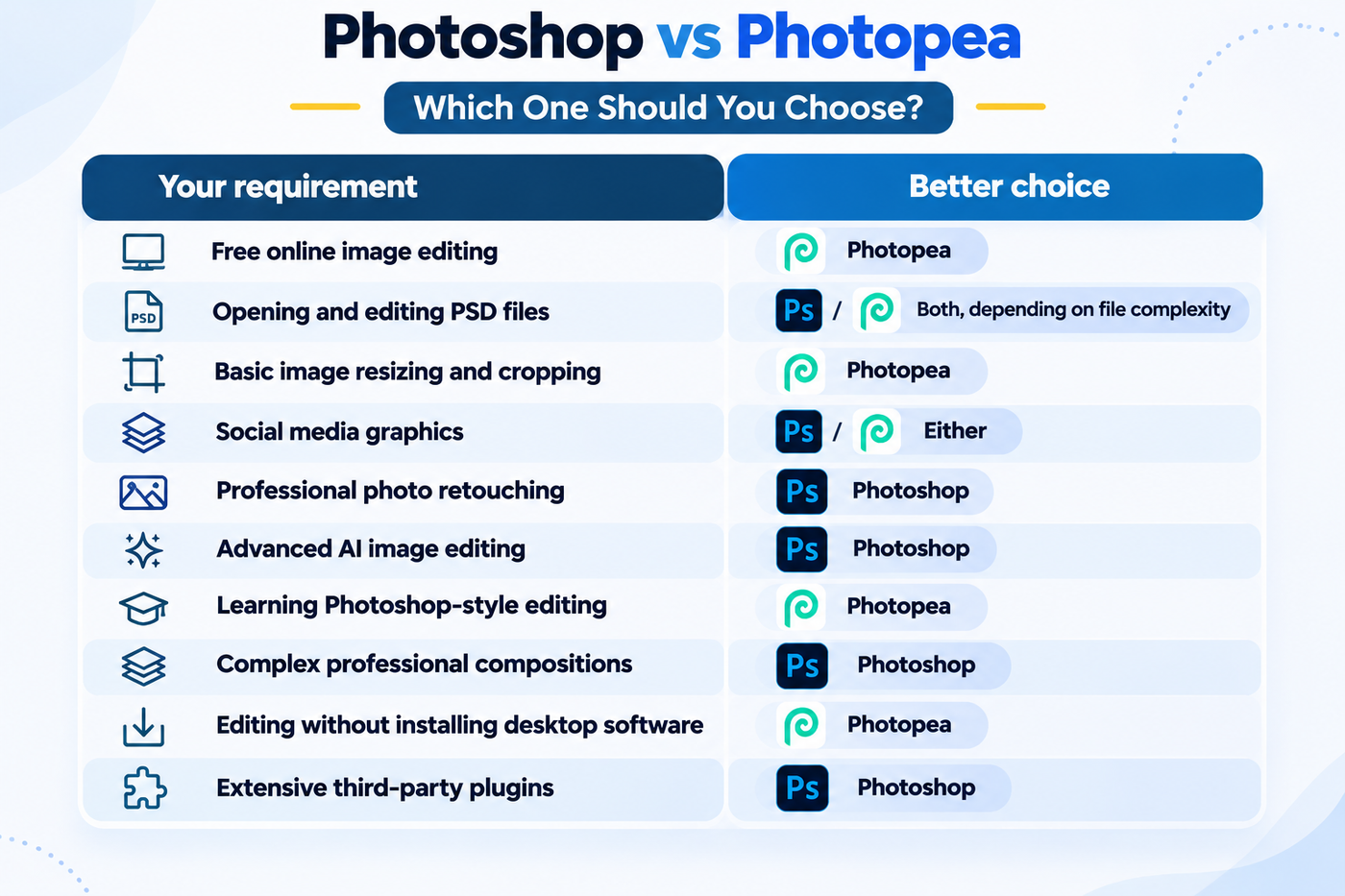
The easiest way to decide is to try Photopea with a real project you regularly work on. If it handles the task without compromising quality or slowing your workflow, you may not need to pay for Photoshop.
Frequently Asked Questions
1. Is Photopea better than Photoshop?
Photopea can be better for people who need free, browser-based image editing. Photoshop is better for advanced professional workflows, detailed retouching and its broader creative ecosystem.
2. What is the best free alternative to Photoshop?
Photopea is one of the most useful free Photoshop alternatives because it supports layers, masks and PSD files through a browser-based editor. Other alternatives may be more suitable depending on whether you need desktop editing, digital painting or simple graphic design.
3. Can Photopea edit Photoshop PSD files?
Yes. Photopea can open and save PSD files. However, complex Photoshop-specific effects and features may not transfer perfectly, so check the project after opening it.
4. Is Photopea completely free?
Photopea offers a free editor supported by advertising and optional Premium benefits. Check its official website for current plan details and usage conditions.
5. Can I use Photopea without downloading it?
Yes. Photopea runs in a web browser, so you do not need to install a traditional desktop application.
6. Is Photopea good for beginners?
Yes. Its familiar editing layout and accessible tools make it a useful starting point for people learning layers, masks, selections and image editing.
7. Can Photopea remove image backgrounds?
Photopea offers background-removal capabilities. The results and available usage conditions can vary, so check the tool's current options.
8. Does Photopea work on mobile devices?
Photopea can be opened in mobile browsers, but its interface is designed around a more spacious editing workspace. Detailed editing is generally more comfortable on a laptop or desktop.
9. Is Photoshop available for free?
Adobe offers some limited free Photoshop-related experiences, including a free mobile version with premium features available through a subscription. The full professional desktop experience is not the same as a permanently free product. Check Adobe's official plans for current access details.
10. Should I learn Photoshop or Photopea first?
Photopea is a convenient way to learn basic image-editing concepts without paying for software. Photoshop is worth learning if you want to work in professional photo editing, graphic design or creative production environments.
11. Can Photopea replace Photoshop for professional work?
It can replace Photoshop for selected professional tasks, but not every workflow. The decision depends on file complexity, required tools, colour requirements, plugins and client expectations.
12. Which is better for editing YouTube thumbnails?
Both can create YouTube thumbnails. Photopea is sufficient for cropping, text, layers and simple compositions. Photoshop offers more advanced control for detailed effects and complex designs.
13. Is Photopea better than GIMP?
Photopea is more convenient for users who want browser-based editing and PSD compatibility. GIMP is better suited to users who prefer a free desktop application with an open-source development model.
14. Can Photopea replace Photoshop for graphic design?
Photopea can handle many everyday graphic design tasks, including social media graphics, basic photo editing and PSD modifications. However, advanced professional workflows may still require Photoshop.
15. Is Photopea good for YouTube thumbnail editing?
Yes. Photopea provides layers, text tools, masks, shapes and image-editing features that are useful for creating YouTube thumbnails.
16. Can I use Photopea on a Chromebook?
Yes. Photopea runs in a modern web browser, so Chromebook users can access it without installing a traditional desktop application.
17. Does Photopea support PSD templates?
Yes. Photopea supports PSD files, allowing users to open and edit compatible Photoshop templates. Some advanced effects or elements may not render exactly as they do in Photoshop.
18. Is GIMP a better free Photoshop alternative than Photopea?
It depends on your workflow. GIMP is a free desktop editor, while Photopea is a browser-based editor with convenient PSD support. Both have different strengths and limitations.
19. Can Photopea remove image backgrounds?
Photopea provides background-removal functionality. The availability and usage conditions of AI-powered tools may depend on its current features and account or credit arrangements.
20. Which is better for beginners: Photoshop or Photopea?
Photopea can be a convenient starting point because users can access it through a browser without purchasing a desktop subscription. Photoshop is worth learning when someone wants to develop advanced professional editing skills.
Final Verdict: Is the Free Alternative Enough?
Photopea has made image editing more accessible. You can open PSD files, work with layers, adjust images and complete many everyday design tasks without installing a traditional desktop editor.
For students, beginners, small businesses and creators with straightforward requirements, it can be more than enough.
Photoshop remains the stronger option when you need advanced retouching, complex compositions, extensive integrations and newer AI-powered editing workflows.
So, is Photopea enough? For everyday image editing, often yes. For demanding professional work, Photoshop still has the advantage.
Instead of choosing a tool because it is popular or free, choose the one that fits your actual projects, budget and working style.